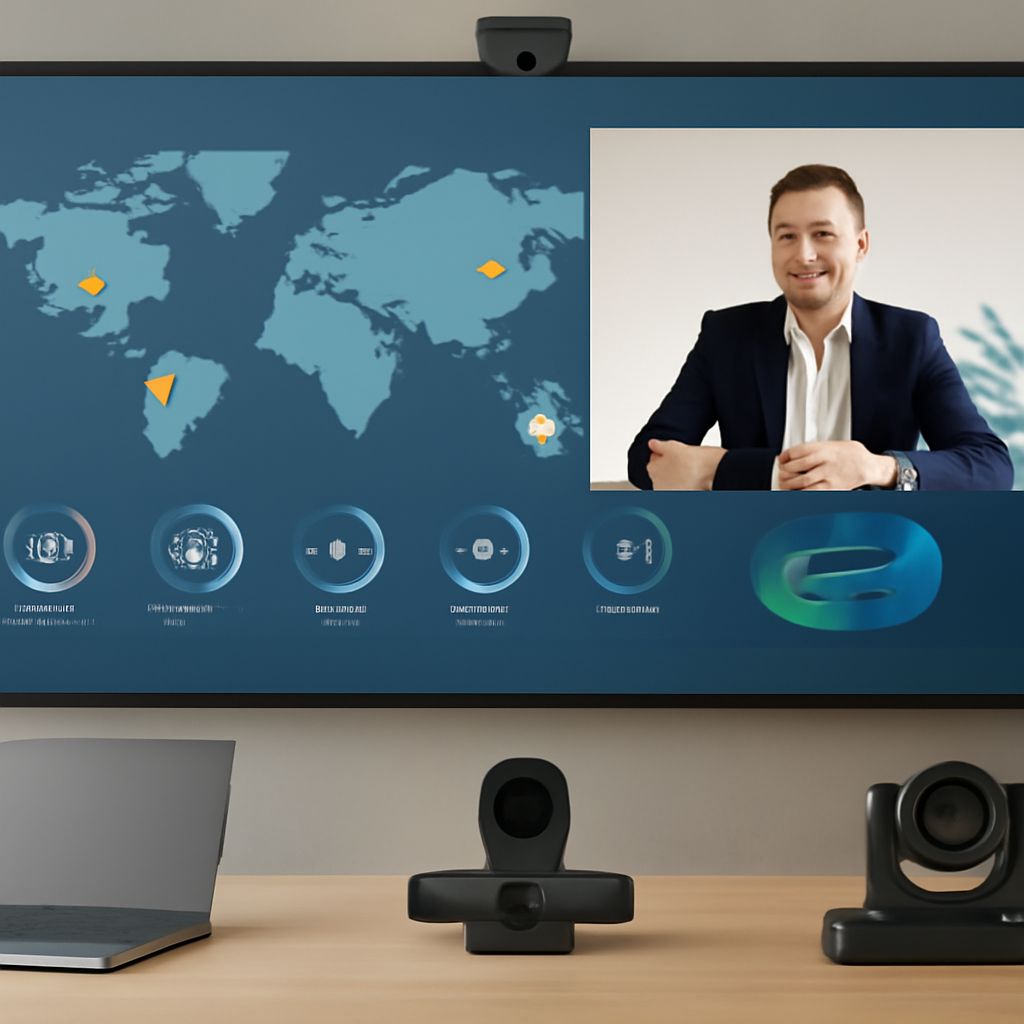
The number of people sharing the room determines what a camera must see and what a microphone must hear. A laptop’s built-in devices may suit one person at a quiet desk; a group around a table needs wider framing and audio that reaches the farthest seat. A camera for video conferencing works best when its view, its sound pickup, and the room’s light are considered together.
Video Conferencing Camera Framing for the Space
For one person, position the lens near eye level and roughly an arm’s length away. The picture should include the head and shoulders with a little space above the head. A camera for computer monitor mounting can bring the lens closer to the viewer’s eye line than a laptop placed low on a desk. Check the clip against the monitor’s thickness and leave enough clearance for a privacy cover if desired.
Field of view describes how much of a scene a lens includes. A narrower view keeps the speaker prominent and shows less of the room. A wider view allows movement or a second person, but can make a single face smaller and show more background. Manufacturers may quote a diagonal rather than a horizontal angle, so compare the same measurement when reading specifications.
In a small meeting room, place the display and camera at one end of the table and check whether people nearest the screen fit inside the frame. A wide-angle lens helps in a tight space, though very wide views can stretch faces near the edges. Moving chairs back or changing the table arrangement may provide a more natural picture than choosing the widest lens available. Logitech’s room setup guide recommends considering camera height, field of view, and seating together.
Automatic framing can crop or follow participants as they move. It can be convenient in a shared room, but a crop reduces the area visible to remote colleagues and may shift unexpectedly. Check whether the feature can be adjusted or switched off and test it with the number of people who normally attend.
Choose a camera and microphone together
A laptop’s computer camera and microphone are convenient for occasional calls: both are already positioned and powered. Their placement is a compromise, however. Raising the screen for a better camera angle may move the keyboard out of comfortable reach, and a microphone near the keyboard can capture typing. A separate webcam and a headset allow the screen, lens, and microphone to be positioned independently.
A pc camera with microphone combines picture and sound in one device and keeps a desk uncluttered. It can work well for a single speaker sitting close to the screen. Listen to a sample recording in the intended room before relying on it: a microphone mounted by the monitor is farther from the speaker than a headset microphone and may pick up more room noise. A separate USB microphone gives more placement options, while a headset also helps keep sound from the speakers out of the microphone.
For three or four people at a small table, consider an all-in-one video bar or a wide camera paired with a tabletop speakerphone. The bar keeps connections simple; the separate speakerphone can sit closer to the people speaking. Check the stated microphone pickup range against the distance to the farthest participant and test voices from each seat. A range figure is a guide under the maker’s conditions, not a substitute for hearing the room.
Echo cancellation reduces the return of remote voices through the room microphone. Use one coordinated speaker and microphone system where possible, and mute other devices in the same room to avoid competing audio paths. Soft furnishings and curtains can reduce reflections from hard surfaces; a microphone closer to the speakers also helps their voices stand apart from the room.
Give the camera usable light
A bright window behind a participant can leave the face in shadow as the camera adjusts for the background. Turn the desk so soft daylight reaches the face from the front or side, or draw a sheer shade and add a lamp. In a meeting room, look at the farthest and nearest seats: a well-lit table is less helpful if one person’s face remains dark.
Avoid pointing an exposed lamp into the lens. A diffused light source placed slightly to one side can make features clear without harsh shadows. Camera software may brighten a dim image, but extra electronic gain can introduce noise and reduce detail. Improving the light often makes a larger difference than increasing resolution.
Compare resolution and connections
Resolution describes the number of pixels in the picture; 1080p is a practical starting point for ordinary meetings. A higher-resolution sensor can give automatic framing more room to crop, but the call application, network, and computer may send a smaller image. Frame rate matters for movement: 30 frames per second generally gives natural motion for conversation. Check the supported combination of resolution and frame rate rather than the highest number on the box.
Most pc cameras connect by USB. Before buying, check the computer’s available port, the cable length, and whether a hub or adapter is required. A camera that connects over USB may provide standard video in a meeting application while needing separate software for framing controls or firmware updates. Confirm support for the computer’s operating system and the intended app, including any permissions or administrator restrictions.
A separate camera and microphone for computer calls must also be selected inside the meeting app. The operating system may recognize both devices while the application still uses the laptop’s built-in microphone. Select the intended video input, microphone, and speaker, then check the preview and audio meter. Close another application that has taken exclusive control of the camera if the picture does not appear.
Match the purchase to the call
For a single desk, compare cameras for computers with the existing laptop camera in the same light. If the picture is acceptable but speech is distant, a headset may improve the call more than replacing the camera. If the laptop sits below eye level, a separate webcam can solve the framing problem while leaving the keyboard in place.
For a small room, a video conferencing camera should fit the nearest seats into view while leaving faces recognizable. Pair it with audio that can pick up the farthest participant, and test a real call from that seat. A conferencing camera with a separate microphone can be easier to position than an integrated bar; the bar has fewer pieces to install and manage.
The best video conference camera is the one that shows every intended participant clearly while the chosen microphone makes each voice understandable from its usual seat.