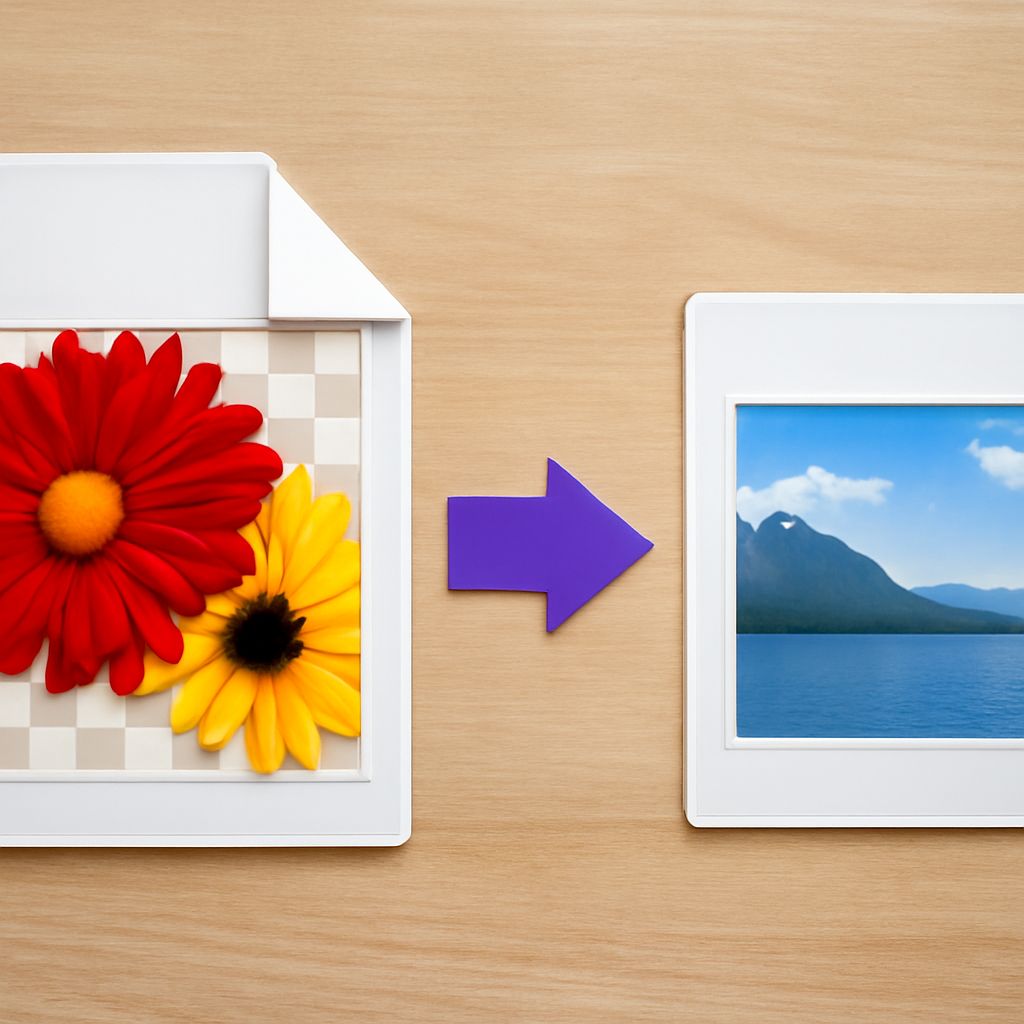
A photograph of a bright room may look unchanged when its file format changes, while the file carrying it becomes much larger. A converter for JPG images to PNG can create the format required for a design or upload; converting a JPEG into a PNG also calls for a brief check of dimensions, color, and the saved file.
Convert JPEG to PNG With an Image Editor
An image editor reads the original picture and writes a new file in the selected format. That export step is what creates a genuine PNG. Changing the letters after the filename alone only changes the label; it leaves the original image data in place.
On a Mac, the included Preview app offers a direct route. According to Apple’s instructions, the steps are:
- Open the JPEG in Preview.
- Choose File > Export.
- Choose PNG from the Format menu.
- Give the copy a name and choose a folder, then select Save.
In another editor, the path is similar: open the image, choose the app’s export or save-as option, select PNG as the output format, and save a separate copy. To convert JPEG to PNG at the original dimensions, leave any resize option disabled. Menu names differ, so the format selector matters more than the wording of a particular button. The original JPEG should remain available for comparison or for returning to an earlier version.
To change JPG to PNG for a project with several images, export one file first and inspect it before processing the rest. This makes it easier to catch an unwanted resize, crop, or color shift before the same settings reach an entire folder.
Choose Between a Local Tool and a Website
An editor installed on a computer keeps the conversion on that device. This is practical for photographs of a private home, client work, or any image that should stay within an existing workflow. It also permits inspection and editing before the copy is saved.
A JPG to PNG converter online can be convenient when installing an application is impractical. The usual sequence is to upload the JPEG, select PNG if necessary, start the conversion, and download the result. Before uploading, check the site’s file limits, privacy and retention terms, and any options that resize or compress the image. If those conditions are unsuitable, a local editor is the more appropriate choice.
The decision to convert JPG to PNG online also depends on the destination. A fast download is only useful if the resulting dimensions and file size meet the project’s requirements. After downloading, open the new file rather than relying on a success message from the website.
Understand What the New File Contains
JPEG and PNG are both raster formats: each stores an image as a grid of pixels. JPEG commonly uses lossy compression, which reduces file size by discarding some image information. PNG uses lossless compression for the pixel data it stores. The distinction matters during further work: a PNG can preserve the pixels written to it without another round of JPEG compression when saved as PNG.
Conversion cannot recover detail already lost in the original JPEG. Soft edges, block-like artifacts, or bands in a smooth sky remain part of the image that the converter receives. If a higher-quality original or camera file exists, starting there gives the editor more information to work with.
Nor does a change of format automatically increase resolution. A photograph that begins at 2,400 by 1,600 pixels will normally retain those dimensions if the export has no resize setting enabled. Enlarging it adds calculated pixels; it does not reveal detail that was absent from the source. For a requested size, compare the image’s pixel width and height with the receiving site’s specifications.
Color and metadata deserve attention as well. A color profile tells compatible software how to interpret colors, while metadata can include details such as capture date or location. Export tools may preserve, change, or remove this information depending on their settings. If accurate color or retained information matters, compare the files in the intended application and inspect the available export options.
Transparency Is a Separate Edit
PNG can store transparency, but a JPEG begins as a flat image with an opaque background. A white wall behind a chair remains a white wall after an ordinary export. To place the chair over a different background, the existing background must first be selected and removed or masked in an editor that supports transparency.
The edge deserves a close look. Fine hair, shadows, and reflections can be partly transparent, and an automatic selection may leave a pale fringe from the old background. Viewing the cutout against both light and dark colors makes those remnants easier to see. Once the background is removed, export to PNG with transparency enabled if the editor offers that setting.
The Preview guide describes a background-removal tool as a separate operation. That distinction applies to other editors too: saving in a format capable of transparency and creating transparent areas are two different steps.
Check the File Before It Is Used
When tools convert .jpg to .png, the new extension is a useful clue, but the file’s reported type gives a better check. In the computer’s file information or properties panel, look for PNG as the format or type. Open it in an image viewer and confirm that it displays correctly.
Compare the original and the new image at the same viewing size. Look at the edges of a window frame, a patch of shadow, and any text or fine pattern: these areas make unexpected changes easier to notice. Also check orientation, cropping, and any transparent edges. A JPG converter to PNG may apply optional settings that alter the result, so those controls should be reviewed if the images differ.
File size is separate from pixel dimensions. PNG copies of photographs are often substantially larger than their JPEG sources, particularly when the scene contains fine detail. If an upload has a size limit, compare the saved file’s size with that limit. A smaller pixel size may help if the receiving service permits it; for a photograph that does not require PNG, a suitable JPEG may be more efficient.
The same review applies whether the goal is to convert from JPG to PNG for a listing or turn a JPG to PNG for a layout. Keep the original alongside the exported copy until the destination has accepted the file and the image has been inspected in context.
A Compact Checklist
- Open the original image in an editor or a trusted converter.
- Remove a background separately if transparency is needed.
- Select PNG as the export format and save a new copy.
- Confirm the file type, pixel dimensions, file size, and appearance.
- Check the result in the application or website where it will be used.