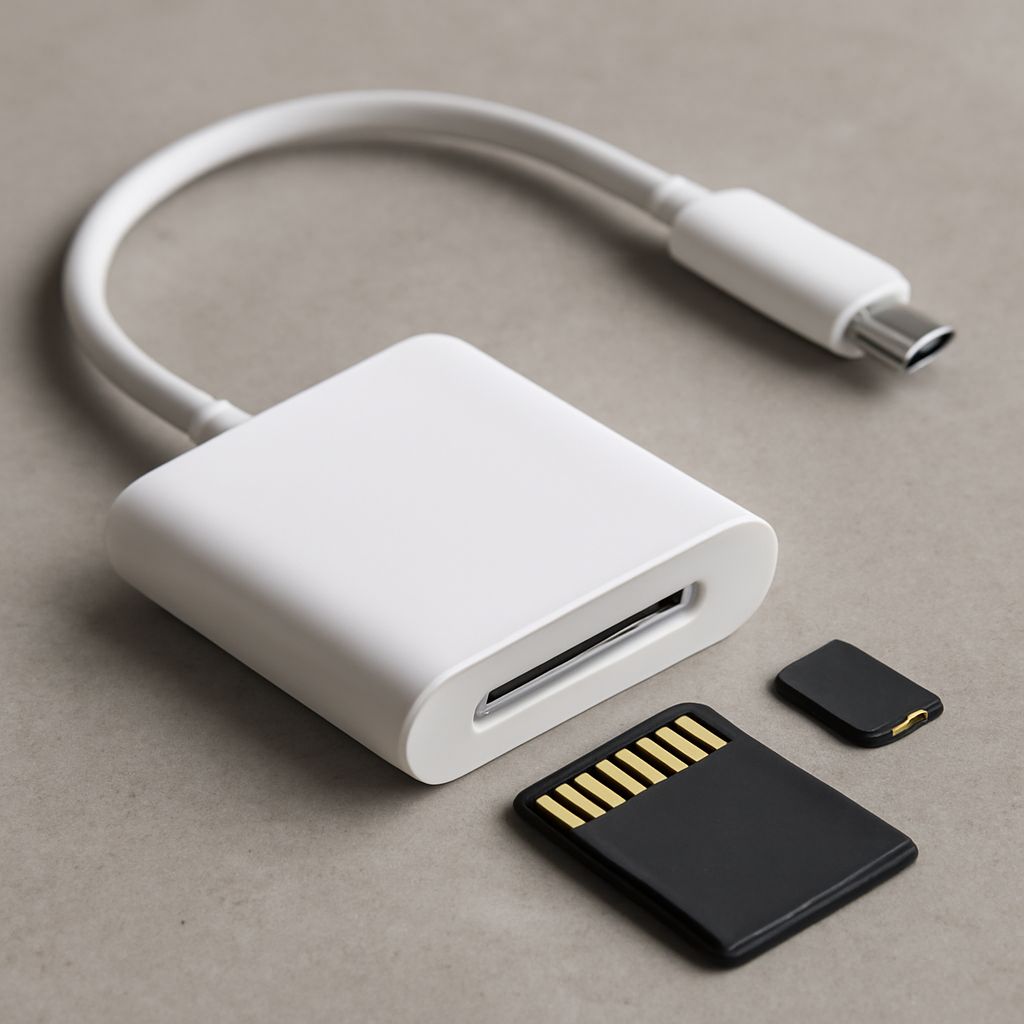
TF Card vs SD Card: What’s the Difference and How to Use Each
The tf card vs sd card question trips up a lot of buyers who encounter both terms on product listings and spec sheets. They look similar, they store data similarly, but they aren’t always interchangeable in every device. Understanding what separates them — and when the difference matters — keeps you from buying the wrong card or wondering why your device won’t read what you just inserted.
This guide explains tf vs sd card differences in terms of physical format and compatibility, covers tf card vs micro sd comparisons specifically, and addresses two common practical questions: how to read micro sd card on a computer, and how to unlock micro sd card when the write-protect switch is engaged.
TF Card vs SD Card: Physical and Technical Differences
A TF card (TransFlash) is technically the same form factor as a microSD card. Sandisk developed TransFlash in 2003; the format was later adopted by the SD Association and renamed microSD. In practice, tf vs sd card confusion usually comes from older devices that list “TF card” compatibility or from Chinese electronics where the TF label is still commonly used. A device labeled “TF card slot” accepts a standard microSD card.
When people compare tf card vs micro sd, they’re looking at what is functionally the same physical card under a different name. The difference becomes relevant only when comparing full-size SD cards (which are physically larger and used in cameras and laptops) versus microSD cards (which are smaller and used in phones, drones, and action cameras).
Full-size SD cards measure 32mm x 24mm x 2.1mm. MicroSD cards measure 15mm x 11mm x 1mm. Many full-size SD card slots include microSD adapter support; the reverse requires a physical adapter sleeve that converts the microSD to SD card dimensions.
How to Read Micro SD Card on a Computer
How to read micro sd card on a computer depends on what ports your computer has. Most modern laptops have a full-size SD card slot; insert your microSD into the included plastic adapter and then into the slot. If your computer has no SD slot, a USB card reader ($8–$15 at any electronics retailer) handles both full-size and micro cards simultaneously.
On Windows, insert the card and open File Explorer. The card appears as a removable drive under “This PC.” On Mac, cards appear on the desktop and in Finder’s sidebar automatically. If the card doesn’t appear, check Finder Preferences → Sidebar → CDs, DVDs, and iOS Devices (enabled).
How to Unlock Micro SD Card
To unlock micro sd card, look for a small physical switch on the left side of the card (for full-size SD) or on the adapter if you’re using a microSD in an adapter. Slide the switch toward the connector end of the card (away from the label) to disable write protection. The card is “locked” (write-protected) when the switch is toward the label end.
If you’re using a microSD card directly in a device and seeing a write protection error, the issue may be a software lock rather than a physical one. On Windows, open Command Prompt as administrator, type “diskpart,” then “list disk,” select your disk number with “select disk N,” and type “attributes disk clear readonly.” This clears software write protection without modifying the physical switch.