SD Card Lock: What It Does and How to Fix a Write-Protected Card
An sd card lock is a small physical switch on the left side of a standard SD card that controls whether data can be written to the card or only read from it. When you encounter a write-protect error in your camera or computer, the sd card lock position is almost always the cause. Flipping the sd card lock switch from the down position (locked) to the up position (unlocked) resolves the issue in seconds. Understanding exactly how to lock sd card and unlock it prevents a frustrating troubleshooting loop when you’re trying to shoot and your camera refuses to save files.
This guide covers how the lock on sd card works mechanically, why the switch sometimes fails, and what to do when flipping the sd card lock switch doesn’t solve the write-protect problem.
How the SD Card Lock Works
The Physical Switch and Its Position
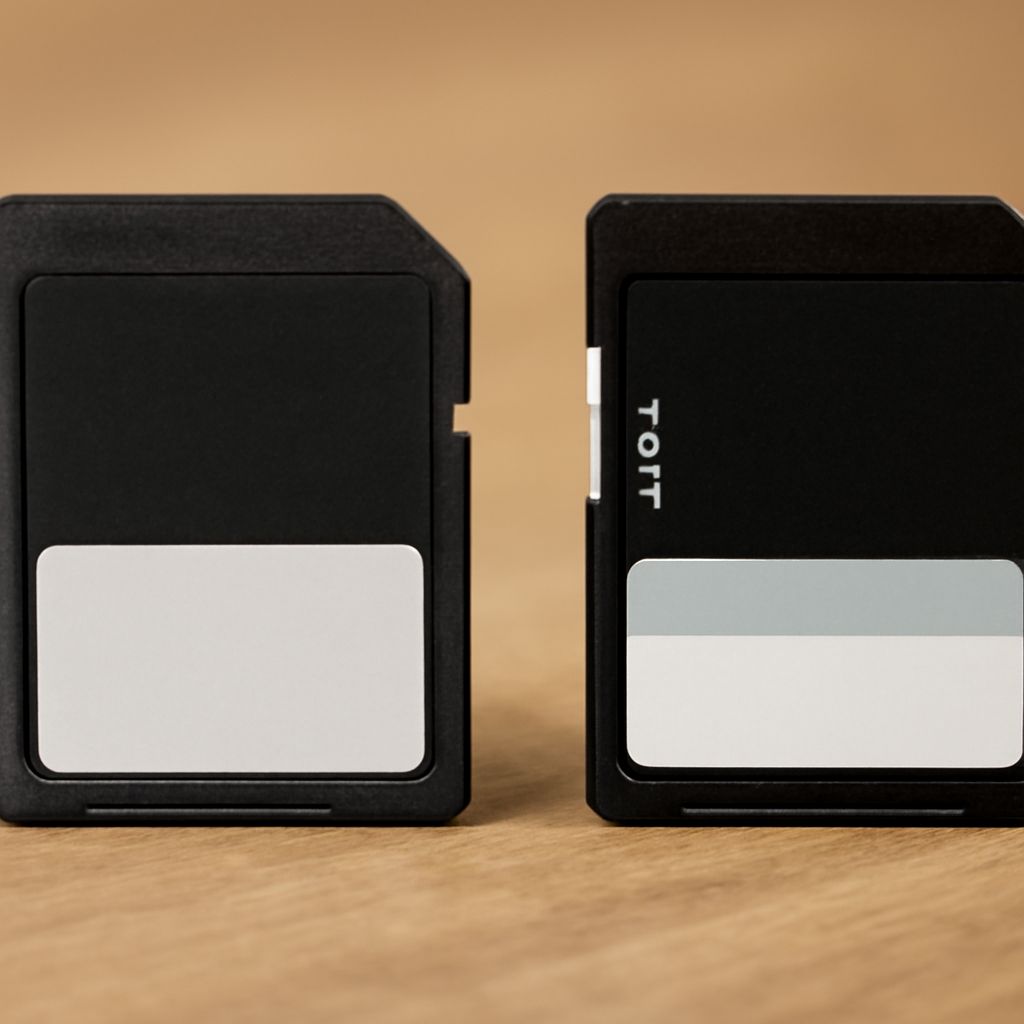
The sd card lock is a 3mm plastic slider on the left side of the card when held label-side up. The sd card lock position down (toward the contacts) engages write protection — the card becomes read-only. Moving the sd card lock switch up (toward the top of the card) disables write protection and allows data writing. This is how to lock sd card deliberately: simply slide the switch down before storing the card with data you don’t want overwritten.
The most common problem with the lock on sd card is that the switch is fragile. It’s a thin plastic tab glued to the card’s body. After repeated insertion and removal, the tab can wear down, break off, or move freely without locking into position properly. When this happens, the card reader — whether in a camera, laptop, or dedicated reader — may read the switch as locked even though you’ve moved it to the unlocked position.
Diagnosing a Stuck Lock
If you’ve moved the sd card lock switch to the unlocked position and still get a write-protect error, test the card in a second device. If both devices report write protection, the issue is the card. If only one device reports it, the issue may be the card reader or a software setting rather than the physical sd card lock.
Some operating systems implement software-level write protection through registry settings (Windows) or disk utility flags (macOS). These are separate from the physical lock on sd card and require different solutions — diskpart commands in Windows or the command line in macOS to clear the read-only flag.
Fixing and Working Around SD Card Lock Problems
When the sd card lock switch is physically broken, you have two practical options. The first is to apply a small piece of opaque tape over the switch slot on the card’s left side. Most card readers detect the lock position by the presence of a bump in the slot — covering it with tape simulates the unlocked position and re-enables writing. Test this carefully; the tape must not extend past the slot or it will jam in the reader.
The second option is to copy all data off the card, reformat it in the camera (not the computer), and test again. A camera format resets the card’s file system and sometimes clears software-level read-only flags that accumulated from abnormal ejection or partial writes. If a reformat also fails, the card itself is likely damaged and should be replaced.
For cards you want to lock sd card deliberately to protect important data, use the physical switch immediately after a shoot and store it separately from your active cards. Label locked cards with a small dot of colored tape to distinguish them at a glance. This prevents accidentally reformatting a card you’ve locked for archival reasons.
Key takeaways: The sd card lock position controls write protection. Move the sd card lock switch to unlocked before shooting, use tape to work around a broken lock on sd card, and test in multiple devices to distinguish physical lock failures from software write-protect flags.